How to Share WiFi with a QR Code
Sharing your WiFi password with guests can be a hassle, especially if it's a long, complex string of characters. WiFi QR codes make this process effortless. In this guide, you'll learn how to create a WiFi QR code, share your network credentials securely, and get guests connected in seconds with a single scan.
Why Use QR Codes for WiFi?
WiFi QR codes offer several advantages over traditional password sharing:
- Convenience: No need to read out or type complex WiFi passwords
- Security: Guests see the password only if they need it
- Speed: Connect in seconds with a single scan
- Compatibility: Works on any smartphone with a camera—iPhone and Android both support native QR scanning
What You'll Need
Before creating your WiFi QR code, gather the following information:
- Network Name (SSID): The name of your WiFi network
- Password: Your WiFi password
- Security Type: Usually WPA/WPA2 for home networks
- Hidden Network: Whether your network is hidden from discovery
Creating Your WiFi QR Code
Step 1: Choose a WiFi QR Code Generator
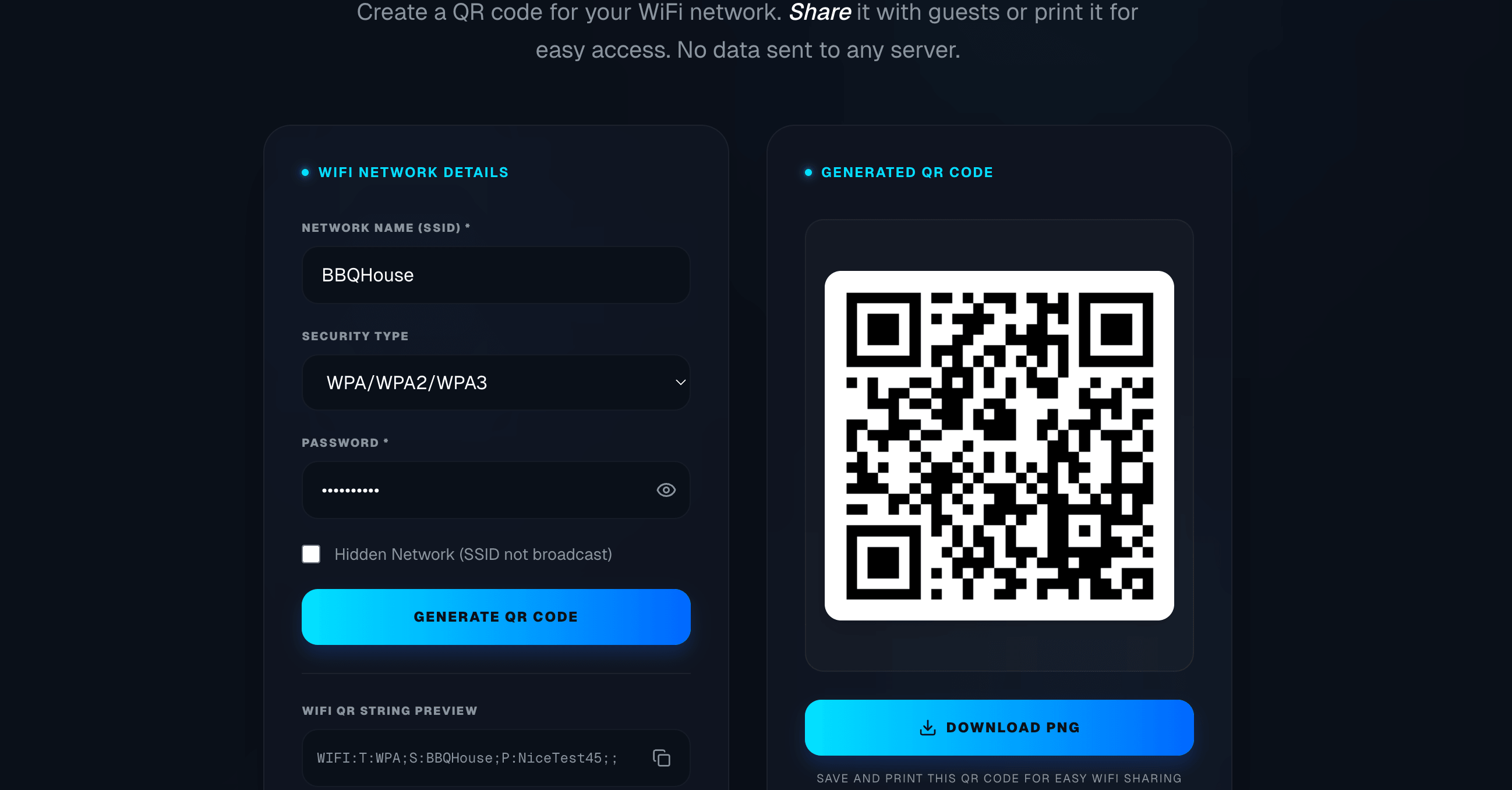
There are many free WiFi QR code generators available. Our WiFi QR Code Generator lets you create codes instantly without any sign-up required—enter your network details and download in seconds.
Step 2: Enter Your Network Details
Fill in the required fields:
| Field | Description | Example |
|---|---|---|
| SSID | Your network name | MyHomeWiFi |
| Password | Your WiFi password | MySecurePass123! |
| Encryption | Security type | WPA2 |
| Hidden | Is network hidden? | No |
Step 3: Generate and Download Your WiFi QR Code
Click the generate button and your WiFi QR code will appear instantly. You can:
- Download as PNG for digital sharing
- Print for physical placement near your router
- Copy the image directly to share via messaging apps
Testing Your QR Code
Always test your QR code before sharing it widely:
- Open your phone's camera app
- Point it at the QR code
- Tap the notification that appears
- Verify you connect successfully
Best Places to Display Your QR Code
Strategic placement makes your QR code more useful:
- Living room: Frame it on a side table
- Guest room: Place on the nightstand
- Kitchen: Stick on the refrigerator
- Entryway: Mount near the front door
- Home office: Keep on the desk for video calls
Troubleshooting Common Issues
QR Code Won't Scan
- Ensure good lighting
- Clean your camera lens
- Hold the phone steady
- Try a different QR scanner app
Connection Fails After Scanning
- Double-check your password was entered correctly
- Verify the encryption type matches your router
- Ensure your network is within range
Security Considerations
While WiFi QR codes are convenient, keep these security tips in mind:
- Don't share publicly: Posting your QR code online exposes your network
- Use guest networks: Consider a separate guest network with limited access
- Rotate passwords: Change your password periodically
- Monitor connected devices: Check your router's admin panel for unknown devices
Advanced: Creating QR Codes for Guest Networks
Many modern routers support guest networks. These are ideal for QR code sharing because they:
- Isolate guest devices from your main network
- Can have time limits or bandwidth restrictions
- Don't expose your primary network password
To create a guest network QR code:
- Enable guest network in your router settings
- Set a simple password (it's temporary anyway)
- Generate a QR code for the guest network
- Share that instead of your main network
Conclusion
WiFi QR codes transform a frustrating experience into a seamless one. Whether you're hosting a party, running an Airbnb, or just tired of spelling out your WiFi password, QR codes are the modern solution for sharing WiFi access.
Ready to create your own? Head to our WiFi QR Code Generator and make your first code in under 30 seconds.